Microsoft Excel: Spreadsheets
Microsoft CorporationProductivity
4.849.76K Reviews
- Version
- Varies With Device
- Installs
- 1.00B
- Age Rating
- Everyone
Screenshots
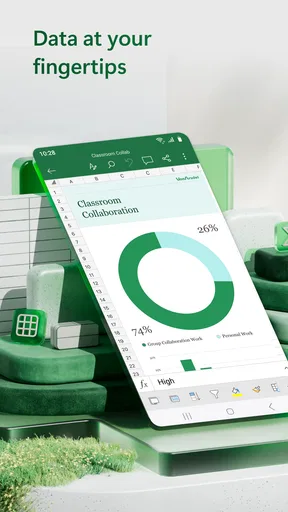
Our Review of Microsoft Excel: Spreadsheets
 Analysis by Appyee
When I need to check a spreadsheet away from my desk, I want to answer a simple question quickly: can I understand the numbers, make a sensible change, and trust that I have not made a mess of the file? That is where Microsoft Excel: Spreadsheets makes sense to me. It brings a familiar spreadsheet workspace to a phone or tablet, though the smaller screen changes what feels comfortable. I see it as a practical companion for reviewing and editing work on the move, rather than a complete replacement for every desktop task.
What speed feels like on a phone
For everyday work, the app’s pace is less about racing through menus and more about how quickly I can get to the right cell, understand a formula, and make a small edit. A simple sheet is usually the kind of job that suits a mobile screen: checking a total, correcting a date, or adding a few rows to a running list. When a workbook is already organized, I can focus on the information instead of rebuilding its structure.
That convenience depends on the file and the task. A wide sheet with many columns asks more of a phone than a compact budget does, and moving around can become the main effort. I try to make the most of the screen by keeping the immediate goal narrow: inspect a section, change a value, or confirm a result. If I need to reshape a whole workbook, I would rather wait until I can use a larger display and a keyboard.
Excel is a free productivity app from Microsoft Corporation, with in-app purchases ranging from one dollar to one hundred and twenty-nine dollars and ninety-nine cents per item. It is rated for Everyone. Its long presence in the spreadsheet category is reflected in a 4.8 average from around eight million ratings and over one billion installs. Those figures tell me it is widely used, but they do not make every mobile workflow effortless; the fit still depends on what I need to do.
Where heavier work gets demanding
Spreadsheets can start out tidy and gradually turn into dense workbooks full of formulas, formatting, and linked decisions. On a phone, the challenge is often not merely waiting for a calculation. It is making sure I am looking at the right part of the sheet and can see enough context to edit safely. A change that is obvious on a large monitor can be harder to judge when the surrounding columns are out of view.
For that reason, I treat mobile editing as best for targeted changes, not as an invitation to make major structural edits in a hurry. Before changing a key input, I check its row and column labels, then look at the resulting totals or chart. If the file is important, I avoid editing while distracted and save a more involved cleanup for a calmer session. That habit is useful in Excel because a spreadsheet can look polished while still hiding a misplaced value or a formula that no longer covers the intended range.
Reliability is also a workflow choice
Excel’s familiarity helps when I need to open a spreadsheet shared by someone else. I do not have to learn a completely different way to think about rows, columns, and formulas before I can inspect the basics. Files can also move between devices as part of a broader Microsoft workflow, which is useful when a task begins on mobile and continues at a desk. Still, collaboration only feels smooth when everyone knows which file they are working in and what kind of changes they are making.
For shared work, I find it sensible to agree on a clear source file and avoid sending several slightly different copies around. If another person only needs to read the result, viewing is safer than inviting edits; if they need to contribute, make the editing purpose clear. These are small habits, but they reduce the familiar spreadsheet problem of conflicting versions. For anything that affects a decision, I also check the final figures rather than assuming that a neat-looking chart proves the underlying data is right.
Choosing the right device for the job
A phone is handy for a quick look, a correction, or a short entry while I am away from my computer. A tablet gives a little more breathing room, while a desktop remains the comfortable choice for building a large model, reviewing many columns at once, or doing extended formula work. Excel can travel across those settings, but the screen and input method still shape how confidently I can work.
The app is a particularly good fit if you already receive Excel files, need to check figures while out, or want one familiar spreadsheet format across personal and work tasks. It is less appealing if your needs are mostly long-form writing, note-taking, or simple lists that do not benefit from formulas and structured tables. For those jobs, a notes app or a lightweight list tool may feel quicker and less demanding. If spreadsheets are central to your work but you rarely edit on a small screen, the desktop version may be the better place to do the heavy lifting.
Released on January sixth, two thousand fifteen, Excel has had time to become a familiar name, but I would not choose it on reputation alone. I would choose it because its spreadsheet approach matches the files and habits I already use. The app’s mobile value is strongest when I treat it as a way to stay connected to a workbook, not as a promise that every complex task will feel as comfortable on a phone as it does at a desk.
Getting Started: A Breeze or a Blunder?
First things first, installing Microsoft Excel: Spreadsheets on your device is as smooth as butter. Whether you’re on Android or iOS, a quick download and sign-in with your Microsoft account, and you’re good to go. The interface is pretty intuitive, especially if you’ve dabbled with Excel on your desktop. But even if you’re a newbie, there’s a neat tutorial that guides you through the basics.
Features That Make You Go Wow
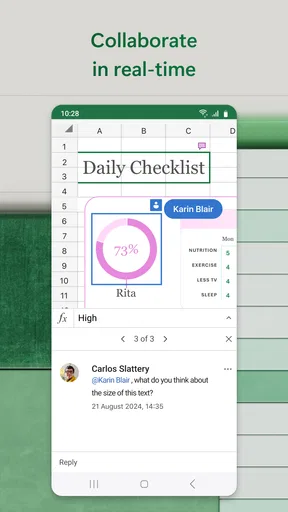
Now, let’s talk about those features that make this app a standout. You’ve got your standard spreadsheet functionalities, but wait, there’s more! The real-time collaboration feature is a game-changer. Imagine working on a budget spreadsheet with your team while they’re miles away. Yes, it’s possible, and it’s seamless. Plus, the cloud integration means your files are always a tap away.
Another nifty feature is the Excel templates. Budget planners, to-do lists, or even a meal prep schedule—there’s a template for everything. Just pick one and customize it to your heart’s content. And if you’re like me and love a bit of automation, the formula suggestions save you tons of time.
Handling Data Like a Pro
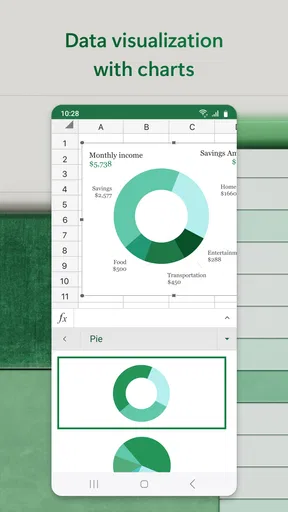
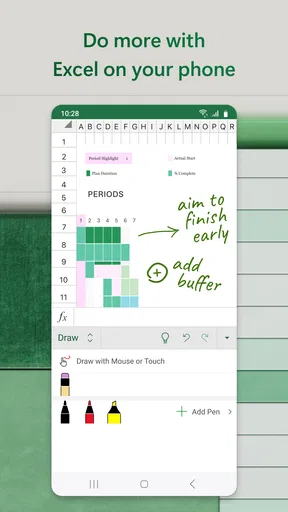
Excel isn’t just about numbers; it’s about making those numbers work for you. The data visualization tools are top-notch. You can turn a boring data set into a snazzy chart or graph with just a few taps. It’s perfect for when you need to impress the boss or simply want to make sense of your data visually.
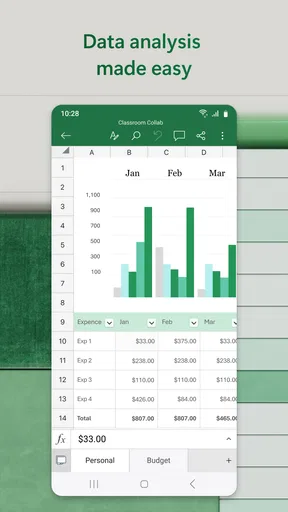
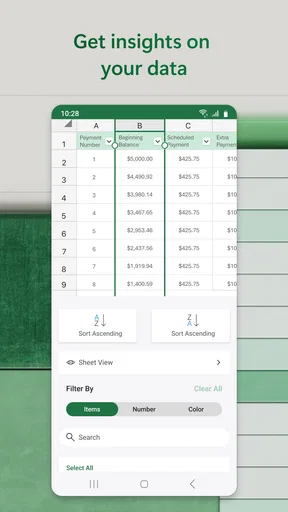
And let’s not forget about the data analysis tools. Whether you’re doing a quick sum or diving into complex calculations, Excel’s got you covered. I’ve personally found the auto-fill and data sorting features to be lifesavers during hectic workdays.
Connectivity and Compatibility
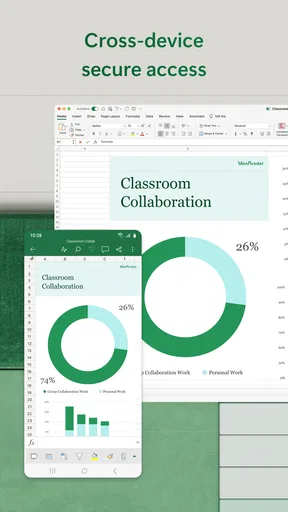
One of the reasons Excel has stood the test of time is its compatibility across platforms. You can start a project on your phone, tweak it on your tablet, and finish it on your desktop. The transition is so smooth you won’t even realize you’ve switched devices. Plus, it supports a wide range of file formats, so you’re never stuck.
Sharing files is also a breeze. You can email them directly from the app or share a link for others to view or edit. It’s all about making collaboration easy and efficient.
Final Thoughts
If you’re looking for an app that combines power, versatility, and ease of use, Excel is a no-brainer. Whether you’re managing personal finances or handling complex business data, this app has everything you need. So, why not give it a whirl and see how it can transform your data game?
Privacy and Permissions
See what permissions an app requests and how it handles your data.
- Identity
- find accounts on the device, add or remove accounts
- Contacts
- find accounts on the device, read your contacts
- Photos/Media/Files
- read the contents of your USB storage, modify or delete the contents of your USB storage
- Storage
- read the contents of your USB storage, modify or delete the contents of your USB storage
- Camera
- take pictures and videos
- Microphone
- record audio
- Wi-Fi connection information
- view Wi-Fi connections
- Other
- view network connections, create accounts and set passwords, pair with Bluetooth devices, measure app storage space, full network access, change your audio settings, control Near Field Communication, run at startup, draw over other apps, use accounts on the device, control vibration, prevent device from sleeping, install shortcuts, Google Play license check
How Microsoft Excel: Spreadsheets Compares
Full ComparisonChoose Google Sheets for straightforward shared spreadsheets, Excel for deeper analysis and offline work, or WPS Office for spreadsheets alongside PDF and document tools.
| App | Developer | Rating | Price |
|---|---|---|---|
 Google Sheets | Google LLC | 4.7 | Free |
 Microsoft Excel: SpreadsheetsThis App | Microsoft Corporation | 4.8 | Free |
 WPS Office-PDF, Word, Sheet | WPS SOFTWARE PTE. LTD. | 4.4 | Free |
Verdict
Strengths of Microsoft Excel: Spreadsheets
- Highly versatile for data analysis.
- Seamless integration with other Microsoft tools.
- Extensive library of formulas and functions.
- Supports collaborative work with ease.
- Available offline for uninterrupted work.
Limitations of Microsoft Excel: Spreadsheets
- Can be overwhelming for beginners.
- Mobile version has limited features.
- Requires a subscription for full access.
- Complex formulas can slow performance.
- Occasional compatibility issues with other formats.
Other Releases by Microsoft Corporation
View All
Microsoft OneDrive
Productivity4.6

Microsoft OneNote: Save Notes
Productivity4.6

Link to Windows
Productivity4.0

Microsoft PowerPoint
Productivity4.8
Similar Picks in This Category
View All
Google Calendar
Google LLC4.6

Google Drive
Google LLC4.3

Google Assistant
Google LLC3.9
Microsoft OneDrive
Microsoft Corporation4.6

Samsung Calendar
Samsung Electronics Co., Ltd.4.1
Microsoft OneNote: Save Notes
Microsoft Corporation4.6
You May Also Like
View All


Frequently Asked Questions
What platforms is Microsoft Excel available on?
Microsoft Excel is available on various platforms, including Windows, macOS, Android, and iOS. This ensures that users can access and edit their spreadsheets across different devices, whether they are using a desktop, tablet, or smartphone. The mobile app offers many of the same features as the desktop version, tailored for touch interfaces.
Does Microsoft Excel require an internet connection to function?
Microsoft Excel can be used offline, but certain features might require an internet connection. For example, saving files to OneDrive or collaborating in real-time with others will need connectivity. However, you can create, edit, and save spreadsheets locally on your device without an internet connection.
What are the key features of the Microsoft Excel mobile app?
The Microsoft Excel mobile app offers a range of features including the ability to create and edit spreadsheets, use formulas and functions, and create charts. It also supports cloud storage integration for easy access and sharing. The app is optimized for touch and has a user-friendly interface for efficient mobile use.
Is Microsoft Excel compatible with other spreadsheet applications?
Yes, Microsoft Excel is compatible with other spreadsheet applications like Google Sheets. You can import and export files in various formats such as .xlsx and .csv, ensuring seamless data exchange between different apps. However, some advanced Excel features might not fully translate to other applications.
Are there any subscription requirements for using Microsoft Excel?
While the basic features of Microsoft Excel mobile app are free, accessing advanced features may require a Microsoft 365 subscription. This subscription provides access to premium features across all Office apps, additional cloud storage, and collaboration tools, offering a more comprehensive experience.
